
Imagine a world where one cable connects your laptop to your monitor, charges your devices, and even sends data super fast. Sounds amazing, right? That’s the magic of USB-C monitors. But if you’ve ever tried to pick one out, you know it’s not always that simple. So many choices can make your head spin!
Choosing the perfect USB-C monitor can feel like a puzzle. You want something that works well with your gadgets, looks good on your desk, and doesn’t break the bank. But with all the different features and brands, it’s easy to get confused and pick the wrong one. This can lead to frustration when your new monitor doesn’t do what you hoped.
That’s where this guide comes in! We’re going to break down everything you need to know about USB-C monitors. You’ll learn what to look for, what to avoid, and how to find the one that’s just right for you. Get ready to say goodbye to tangled wires and hello to a cleaner, more efficient workspace!
Top Usb C Monitors Recommendations
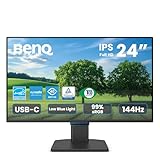
- 【Designed for Comfortable All-Day Productivity】 Enhance your workflow with a 24-inch IPS eye care monitor built for home office, study, and daily tasks, featuring BenQ Eye-Care technologies to reduce eye strain during extended screen time.
- 【USB-C One-Cable Convenience】 Connect your laptop or MacBook with a single USB-C cable for video, data, reducing cable clutter and simplifying your workspace
- 【Smooth 144Hz for Better Work Experience】 Enjoy smoother scrolling, reduced motion blur, and more responsive multitasking compared to standard 60Hz monitors—perfect for long work sessions and Gaming!

- Vivid Visuals at Wide Viewing Angles - Experience exceptional picture quality with the 27" QHD (2560x1440) display, with IPS technology for vivid and vibrant visuals - even at wider viewing angles.
- 100Hz Smoother, Seamless Visuals - With a 100Hz refresh rate and 5ms(GTG) response time, on screen visuals are rendered clearly for ultra-smooth motion and fluidity.
- Bold Color on a 27" Screen - Immerse yourself in a world of brilliant color from HDR10 that helps enhance picture quality and up to 99% sRGB color gamut expression to make games visually pop.

- Elevated entertainment: The QHD resolution and 1500:1 contrast ratio bring astounding depth and vivid detail, while a 144Hz refresh rate and 1ms Moving Picture Response Time (MPRT) deliver a smooth, tear-free viewing experience.
- Hear the audio difference: Immerse yourself in sound with integrated dual 3W speakers delivering a wider range of frequencies.
- Eye comfort: Prioritize visual comfort with this 4-star TÜV-certified display. Reduce harmful blue light emissions while maintaining stunning image quality without compromising colors.

- MSI's 24-inch Full HD IPS monitor (1920×1080) delivers a 1500:1 contrast ratio with wide 178°/178° viewing angles — producing deeper blacks, brighter highlights, and accurate colors from virtually any position for gaming and productivity.
- TÜV Rheinland certified Flicker Free and Low Blue Light — eliminating the ~200Hz screen flicker common on standard monitors and reducing harmful blue light exposure to minimize eye strain during extended gaming or work sessions.
- 144Hz high refresh rate delivers ultra-smooth motion and sharper tracking versus standard 60Hz or 75Hz monitors — keeping every frame fluid and responsive for fast-paced FPS, racing, and action games without screen tearing or stuttering.
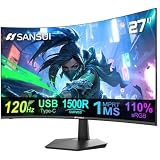
- ⭐27 inch curved monitor with speakers built in for gaming, work or business.
- Screen Feature: 120hz Refresh Rate丨1ms(MPRT) Fast Response Time丨Adaptive Sync
- Display Color: 110% sRGB丨 4000:1 Contrast Ratio丨300Nits Brightness丨16.7M display colors
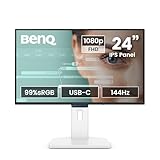
- 【Designed for Comfortable All-Day Productivity】 Enhance your workflow with a 24-inch IPS eye care monitor built for home office, study, and daily tasks, featuring BenQ Eye-Care technologies to reduce eye strain during extended screen time.
- 【USB-C One-Cable Convenience】 Connect your laptop or MacBook with a single USB-C cable for video, data, and power delivery, reducing cable clutter and simplifying your workspace
- 【Smooth 144Hz for Better Work Experience】 Enjoy smoother scrolling, reduced motion blur, and more responsive multitasking compared to standard 60Hz monitors—perfect for long work sessions and Gaming!

- Display Specifications: 24-inch Full HD (1920 x 1080) LED backlight display with IPS 178 wide viewing angle panel
- Wide Color Gamut: International color standard 100% sRGB and 100% Rec. 709 wide color gamut
- Factory Calibrated Accuracy: Calman Verified with factory calibration for excellent Delta E < 2 color accuracy
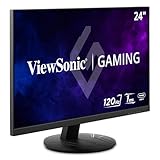
- High-Speed 120Hz Full HD IPS Gaming Display: Elevate your gameplay with this 24 Inch FHD (1920 x 1080) monitor; featuring a 120Hz overclock (OC) refresh rate and 1ms (MPRT) response time, this display delivers the speed needed for competitive play
- Ultra-Smooth Variable Refresh Rate Performance: Achieve tear-free and fluid gameplay with Variable Refresh Rate technology; this feature synchronizes your monitor's output with your GPU to eliminate stuttering and image tearing for a seamless experience
- Streamlined USB-C Connectivity: Simplify your setup with a universal USB-C connection that transfers high-definition video, audio, and data through a single reversible cable; this port provides seamless integration for the newest gaming and professional devices
Unlock Your Workspace: The Ultimate USB-C Monitor Buying Guide
USB-C monitors are a fantastic upgrade for your computer setup. They make connecting your devices super simple. You can often power your laptop and send video through just one cable. This guide will help you pick the best USB-C monitor for your needs.
Why Choose a USB-C Monitor?
USB-C is a modern connector. It’s small and can do a lot. It sends video, data, and power. This means fewer messy cables on your desk. It’s great for laptops, especially thin and light ones.
Key Features to Look For
Here are the important things to consider when buying a USB-C monitor.
1. USB-C Power Delivery (PD) Wattage
- What it is: This feature lets the monitor charge your laptop.
- Why it matters: Check the wattage. Your laptop needs a certain amount of power to charge. Look for a monitor that provides enough watts for your laptop. Most laptops need at least 30W, but some powerful ones need 60W or more.
- Simple Tip: If your laptop’s charger says “65W,” try to find a USB-C monitor with at least 65W PD.
2. Display Resolution and Size
- Resolution: This is how clear the picture is. Common resolutions are Full HD (1080p) and 4K (2160p). Higher resolution means a sharper image.
- Size: Monitors come in different sizes, usually measured in inches. A larger screen gives you more space to work.
- Consider: For everyday tasks like email and web browsing, 1080p is fine. For creative work or gaming, 4K offers a much better experience.
3. Refresh Rate and Response Time
- Refresh Rate: This is how many times the screen updates per second. Measured in Hertz (Hz). A higher refresh rate (like 144Hz) makes motion look smoother.
- Response Time: This is how fast a pixel can change color. Measured in milliseconds (ms). Lower numbers (like 1ms) mean less motion blur.
- Best for: Gamers need high refresh rates and low response times. For regular work, it’s less critical.
4. Panel Type
- IPS (In-Plane Switching): This is the most common and recommended type for USB-C monitors. IPS panels offer great color accuracy and wide viewing angles. This means the colors look good even when you’re not looking directly at the screen.
- VA (Vertical Alignment): VA panels have better contrast than IPS. This means deeper blacks. However, their viewing angles are not as good.
- TN (Twisted Nematic): TN panels are the fastest. They have very low response times. But, they have the worst color accuracy and viewing angles.
- Recommendation: For most users, IPS is the best choice.
5. Connectivity Ports
- Beyond USB-C: While USB-C is key, check for other ports. HDMI and DisplayPort are common. These let you connect older devices or use multiple monitors.
- USB-A Ports: Some monitors have USB-A ports. You can plug in your mouse, keyboard, or other accessories directly into the monitor.
Important Materials and Build Quality
- Stand: A good stand lets you adjust the monitor’s height, tilt, and swivel. This helps you find a comfortable position. Look for a sturdy stand that doesn’t wobble.
- Bezels: Bezels are the borders around the screen. Thin bezels look more modern and are great for multi-monitor setups.
- Build: Most monitors are made of plastic. Higher-end models might use more premium materials. A well-built monitor feels solid and durable.
Factors That Improve or Reduce Quality
- Color Accuracy: This is how true the colors on the screen are to reality. Look for monitors with good sRGB coverage (99% or higher is excellent). This is important for photo editing and graphic design.
- Brightness: Measured in nits. Higher nits mean a brighter screen. This is useful if you work in a bright room.
- HDR (High Dynamic Range): HDR provides a wider range of colors and contrast. This makes images and videos look more vibrant and realistic.
- Screen Finish: Matte screens reduce glare from lights. Glossy screens can make colors pop but are prone to reflections.
User Experience and Use Cases
- For Students: A USB-C monitor with good power delivery can charge your laptop and display your work. This simplifies your dorm room or study space.
- For Professionals: A large, high-resolution USB-C monitor can boost productivity. You can see more at once. A second monitor can be useful for multitasking.
- For Gamers: Look for high refresh rates and low response times. USB-C can connect your gaming PC or console.
- For Creatives: Color accuracy is crucial. IPS panels and good sRGB coverage are important. HDR can enhance visual work.
Frequently Asked Questions (FAQ)
Q: What is the main benefit of a USB-C monitor?
A: The main benefit is that you can often use just one cable to connect your laptop for video, data, and power. This reduces cable clutter.
Q: How much power delivery wattage do I need?
A: Check your laptop’s charger. If it says 65W, aim for a monitor with at least 65W of power delivery.
Q: Is 1080p resolution enough for a USB-C monitor?
A: For general use like web browsing and documents, 1080p is usually fine. For sharper images and more detail, consider 4K.
Q: What does refresh rate mean?
A: Refresh rate is how many times the screen updates per second. A higher refresh rate (like 144Hz) makes motion look smoother.
Q: Should I choose an IPS or VA panel?
A: IPS panels offer better color accuracy and viewing angles, making them ideal for most users. VA panels have better contrast.
Q: Can I connect my old gaming console to a USB-C monitor?
A: Yes, if the monitor has HDMI or DisplayPort connections, you can connect older devices.
Q: What is HDR and why is it important?
A: HDR (High Dynamic Range) offers a wider range of colors and contrast, making images and videos look more realistic and vibrant.
Q: How do I know if my laptop supports USB-C video output?
A: Look for a USB-C port with a DisplayPort logo or a Thunderbolt logo. If unsure, check your laptop’s manual or specifications.
Q: Are USB-C monitors good for multiple monitors?
A: Yes, the single-cable solution makes setting up dual or triple monitor configurations much cleaner.
Q: What does “matte” vs. “glossy” screen mean?
A: Matte screens reduce glare and reflections, while glossy screens can make colors appear more vibrant but are more prone to reflections.

Hi, I’m Tom Scalisi, and welcome to The Saw Blog! I started this blog to share my hands-on experience and insights about woodworking tools—especially saws and saw blades. Over the years, I’ve had the chance to work with a wide range of tools, and I’m here to help both professionals and hobbyists make informed decisions when it comes to selecting and using their equipment. Whether you’re looking for in-depth reviews, tips, or just advice on how to get the best performance out of your tools, you’ll find it here. I’m excited to be part of your woodworking journey!