
Imagine this: you’ve finally saved up for that dream PC build or just need to upgrade your current setup, but then you hit a wall. The monitor aisle, or the endless scroll online, feels like a maze. You’re looking for a screen that’s good for gaming, sharp enough for work, and doesn’t cost an arm and a leg. But where do you even start when the prices can be so different?
Choosing a computer monitor under $500 can feel overwhelming. There are so many brands, resolutions, refresh rates, and screen sizes to consider. You want something that looks great and performs well, but you also don’t want to break the bank. It’s easy to get lost in technical terms and wonder which features actually matter for what you do.
Don’t worry, we’re here to help! By the end of this post, you’ll understand the key things to look for in a monitor within this budget. We’ll break down the confusing jargon and show you how to find a display that fits your needs without emptying your wallet. Let’s dive in and discover the best computer monitors you can get for under $500!
Top Computer Monitors Under 500 Recommendations

- 【INTEGRATED SPEAKERS】Whether you're at work or in the midst of an intense gaming session, our built-in speakers provide rich and seamless audio, all while keeping your desk clutter-free.
- 【EASY ON THE EYES】 Protect your eyes and enhance your comfort with Blue-Light Shift technology. This feature reduces harmful blue light emissions from your screen, helping to alleviate eye strain during long hours of use and promoting healthier viewing habits.
- 【WIDEN YOUR PERSPECTIVE】Our sleek minimal bezel design ensures undivided attention. The nearly bezel-free display seamlessly connects in a dual monitor arrangement, delivering an unobstructed view that lets you focus on more at once, completely distraction-free.
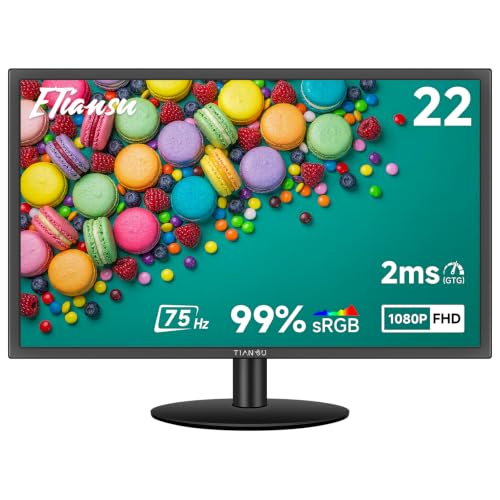
- Flicker-Free Eye Care & Wide Color Gamut (sRGB 99% + 90% DCI-P3): Low blue light mode and flicker-free technology help provide a more comfortable viewing experience during extended work sessions. The IPS panel covers 99% sRGB and 90% DCI-P3 color gamut, delivering rich, accurate colors with wide viewing angles that maintain consistency from any position.
- 75Hz Refresh Rate & 2ms Response Time: Smooth, tear-free visuals for gaming and multimedia. This monitor delivers a 75Hz refresh rate with a 2ms response time for fluid performance in everyday gaming and entertainment. AMD FreeSync technology helps reduce screen tearing for a more stable visual experience across compatible devices.
- HDMI 2.0 + VGA Dual Input & VESA Mount Ready: HDMI 2.0 port supports high-bandwidth video transmission for stable Full HD output. Compatible with both modern and legacy devices without additional adapters — connect to laptops, desktops, and gaming consoles using the included cables. VESA 75x75mm compatible for wall or arm mounting to optimize desk space with straightforward installation.

- CRISP CLARITY: This 23.8″ Philips V line monitor delivers crisp Full HD 1920x1080 visuals. Enjoy movies, shows and videos with remarkable detail
- INCREDIBLE CONTRAST: The VA panel produces brighter whites and deeper blacks. You get true-to-life images and more gradients with 16.7 million colors
- THE PERFECT VIEW: The 178/178 degree extra wide viewing angle prevents the shifting of colors when viewed from an offset angle, so you always get consistent colors

- Clear visuals. Fluid motion: A 144Hz refresh rate and 1ms MPRT deliver smooth, tear‑free motion across work, gaming, and streaming for clearer, more fluid viewing.
- Eye comfort: TÜV Rheinland 3‑star* certification reduces harmful blue light while preserving stunning color quality without compromise. *TÜV Rheinland 3-star eye comfort certification.
- Wide viewing angle: Get consistent views across a wide 178° /178° viewing angle.

- CURVED FOR ENHANCED ENGAGEMENT: An immersive viewing experience with a curved monitor that wraps more closely around your field of vision; It creates a wider view, enhancing depth perception and minimizing peripheral distraction
- SMOOTH PERFORMANCE FOR SEAMLESS CONTENT: Stay in the action when playing games, watching videos, or working on creative projects; The 100Hz refresh rate reduces lag and motion blur so you don't miss a thing in fast-paced moments¹
- MORE GAMING POWER: Gain the edge with optimizable game settings; Color and image contrast can be adjusted to see scenes more vividly and spot enemies hiding in the dark; Game Mode adjusts any game to fill the screen so you can view every detail²

- 【SEAMLESS CONNECTIVITY & PERFORMANCE】 Seamlessly link your devices to our two HDMI ports and two DisplayPort providing up to 240Hz refresh rate, ensuring not only versatile connectivity but also a buttery-smooth visual experience for both work and play. Built-in Speakers and Audio Out Jack also provides diverse audio options.
- 【INTEGRATED SPEAKERS】Whether you're at work or in the midst of an intense gaming session, our built-in speakers provide rich and seamless audio, all while keeping your desk clutter-free.
- 【EASY ON THE EYES】 Protect your eyes and enhance your comfort with Blue-Light Shift technology. This feature reduces harmful blue light emissions from your screen, helping to alleviate eye strain during long hours of use and promoting healthier viewing habits.
- Clear visuals. Fluid motion: A 144Hz refresh rate and 1ms MPRT deliver smooth, tear‑free motion across work, gaming, and streaming for clearer, more fluid viewing.
- Eye comfort: TÜV Rheinland 3‑star* certification reduces harmful blue light while preserving stunning color quality without compromise. *TÜV Rheinland 3-star eye comfort certification.
- Wide viewing angle: Get consistent views across a wide 178° /178° viewing angle.

- 19.5" HD+ (1600 x 900) Widescreen Monitor
- Panel Type: TN
- Refresh Rate: 75Hz | Response Time: 6ms (G to G)
Your Guide to the Best Computer Monitors Under $500
Finding a great computer monitor doesn’t have to cost a fortune. We’ve put together this guide to help you choose the perfect monitor for your needs, all while staying under $500.
Key Features to Look For
When you’re shopping for a monitor, keep these important features in mind. They make a big difference in how your screen looks and how you use it.
- Resolution: This tells you how many pixels are on the screen. More pixels mean a sharper, clearer picture. For most people, 1080p (Full HD) is good. If you want even more detail, look for 1440p (QHD).
- Screen Size: This is how big the screen is, measured diagonally. Common sizes are 24 inches, 27 inches, and 32 inches. Bigger isn’t always better; choose a size that fits your desk and your eyes.
- Refresh Rate: This is how many times the screen updates with a new image each second. It’s measured in Hertz (Hz). A higher refresh rate (like 75Hz or 144Hz) makes motion look smoother. This is great for gaming and watching fast-paced videos.
- Response Time: This is how quickly a pixel can change from one color to another. It’s measured in milliseconds (ms). A lower response time (like 1ms or 4ms) reduces motion blur, which is also good for gaming.
- Panel Type: The type of panel affects colors, viewing angles, and contrast.
- IPS (In-Plane Switching): These panels offer excellent color accuracy and wide viewing angles. They are great for creative work and general use.
- VA (Vertical Alignment): These panels have great contrast ratios, meaning they show deeper blacks. They are good for watching movies and gaming.
- TN (Twisted Nematic): These are usually the fastest panels with low response times. They are often the cheapest but have less accurate colors and narrower viewing angles.
Important Materials and Build Quality
Monitors are made with different materials. The quality of these materials affects how durable and good the monitor looks.
- Stand: A sturdy stand keeps your monitor stable. Some stands let you adjust the height, tilt, and swivel. This helps you find a comfortable viewing position.
- Bezels: These are the borders around the screen. Thinner bezels (the edges) make the monitor look more modern. They are also good if you want to use multiple monitors side-by-side.
- Build Materials: Most monitors use plastic. Higher-end monitors might use more metal for a premium feel. Check reviews to see if the monitor feels cheap or well-built.
Factors That Improve or Reduce Quality
Several things can make a monitor’s picture look better or worse.
- Color Accuracy: This is how closely the monitor’s colors match real-life colors. Good color accuracy is important for photo editing and graphic design. Look for monitors with high sRGB coverage.
- Contrast Ratio: This is the difference between the brightest white and the darkest black a monitor can show. A higher contrast ratio means deeper blacks and more vibrant images.
- Brightness: Measured in nits, brightness affects how well you can see the screen in a well-lit room. 250-300 nits is usually enough for indoor use.
- Viewing Angles: This is how good the picture looks when you view it from the side. IPS panels have the best viewing angles. If you often have people watching your screen with you, this is important.
- Flicker-Free Technology: Some monitors can have a slight flicker that you can’t see but can cause eye strain. Flicker-free technology reduces this.
- Blue Light Filter: This feature reduces the amount of blue light emitted from the screen. This can help reduce eye strain, especially when using the monitor at night.
User Experience and Use Cases
Think about how you will use your monitor most. This will help you pick the right features.
- General Use (Web Browsing, Email, Office Work): A 24-inch or 27-inch monitor with 1080p or 1440p resolution is usually perfect. An IPS panel offers good colors and viewing angles for comfortable work.
- Gaming: Gamers need fast refresh rates (75Hz or higher) and low response times (1ms to 5ms). A 144Hz refresh rate is a great sweet spot for gaming under $500. Consider a 27-inch monitor for a more immersive experience.
- Creative Work (Photo/Video Editing, Graphic Design): Color accuracy is key here. Look for IPS panels with high sRGB coverage (close to 100%). A 27-inch monitor with 1440p resolution provides enough screen space for detailed work.
- Watching Movies and TV Shows: A monitor with a good contrast ratio (VA panels often excel here) will make movies look more engaging. A larger screen size can also enhance the viewing experience.
Frequently Asked Questions (FAQ)
Q: What is the best resolution for a monitor under $500?
A: For most people, 1080p (Full HD) is a great choice. If you want a sharper image and have the budget, 1440p (QHD) is even better.
Q: Should I prioritize refresh rate or response time for gaming?
A: Both are important for gaming. A higher refresh rate (like 144Hz) makes motion smoother, while a lower response time (like 1ms) reduces blur. Many monitors under $500 offer a good balance of both.
Q: What does “IPS panel” mean, and is it good?
A: An IPS panel offers excellent color accuracy and wide viewing angles. This means colors look good from almost any angle. They are great for general use and creative work.
Q: How big should my monitor be?
A: 24-inch and 27-inch monitors are very popular. Choose a size that fits your desk and how close you sit to the screen.
Q: Is a curved monitor better than a flat one?
A: Curved monitors can feel more immersive, especially larger ones. However, flat monitors are perfectly fine for most users and are often more affordable.
Q: What does “adaptive sync” like FreeSync or G-Sync mean?
A: Adaptive sync helps prevent screen tearing by matching the monitor’s refresh rate to your graphics card’s frame rate. It makes gaming look smoother.
Q: Do I need a monitor with built-in speakers?
A: Many monitors have speakers, but they are often not very good. If sound quality is important, you’ll want to use separate speakers or headphones.
Q: What is contrast ratio, and why is it important?
A: Contrast ratio shows the difference between the brightest and darkest parts of an image. A higher contrast ratio means deeper blacks and a more realistic picture, especially for movies.
Q: How many USB ports should I look for?
A: The number of USB ports varies. If you plan to connect many devices to your monitor, look for one with a few USB ports.
Q: Can I use a gaming monitor for everyday tasks?
A: Yes, you can! Gaming monitors often have great features like fast refresh rates that also make everyday tasks feel smoother and more responsive.

Hi, I’m Tom Scalisi, and welcome to The Saw Blog! I started this blog to share my hands-on experience and insights about woodworking tools—especially saws and saw blades. Over the years, I’ve had the chance to work with a wide range of tools, and I’m here to help both professionals and hobbyists make informed decisions when it comes to selecting and using their equipment. Whether you’re looking for in-depth reviews, tips, or just advice on how to get the best performance out of your tools, you’ll find it here. I’m excited to be part of your woodworking journey!