
As an Amazon Associate I earn from qualifying purchases.
Finding the right Android Pdf Reader can be harder than it seems. Some options focus on basic viewing, while others add annotation, form filling, signatures, conversion tools or a more comfortable reading setup.
Think about the files you handle most. Search, bookmarks and direct page access help with everyday reading, while read-aloud, night mode, notes and PDF editing matter more for study or document work.
These picks were selected from the supplied product details, with priority given to useful PDF features and clear differences in purpose. The list includes dedicated Android PDF apps, a portable Android e-reader and one Android-compatible storage accessory for moving files.
You will find the strongest all-round editor first, followed by options for distraction-free reading, simple viewing, learning and file access. The final choice depends on whether you need to read, edit or move PDFs.
Our Top 5 Android Pdf Reader Picks at a Glance
| Product | ||
|---|---|---|
 |
DevappJava PDF Reader, Viewer & Editor Complete PDF document work |
Check Price |
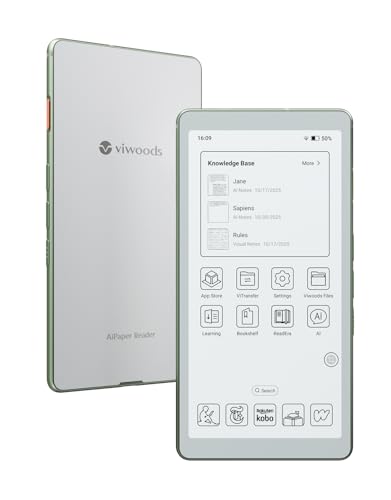 |
VIWOODS AiPaper Reader 6.13-inch Portable, comfortable reading |
Check Price |
 |
PDF Tools PDF Reader & Editor Simple everyday PDF viewing |
Check Price |
 |
AnnaApp PDF Reader Android Learning PDF basics |
Check Price |
 |
DKQRCSL USB-C/Lightning SD Card Reader Moving files to Android |
Check Price |
Top 5 Android Pdf Reader: Detailed Reviews
1. DevappJava PDF Reader, Viewer & Editor
DevappJava PDF Reader, PDF Viewer, PDF Editor is an Android Pdf Reader built for more than basic viewing. You can read aloud, use night and reading modes, search, bookmark, highlight, underline, draw, add notes and text, fill forms, sign with a finger, and add password protection. It also converts PDFs to Word or JPG, merges or rearranges pages, extracts pages, and scans with your camera. Support for Office files, EPUB books, PDF conversion, and Wi-Fi sending to Fire TV makes it a broad document toolkit.
What We Like:
- Markup tools let you highlight, draw, annotate, and add text directly to documents.
- Form filling, finger signatures, and password protection cover common paperwork tasks.
- Page merging, extraction, reordering, and conversion reduce the need for separate utilities.
- Read-aloud, night mode, bookmarks, and search make longer reading more manageable.
- Office, EPUB, scanning, and Fire TV support extend it beyond PDF-only use.
What Could Be Improved:
- The wide feature set may feel more complicated than necessary if you only want to open and read PDFs.
- Scanning, conversion, editing, and file support place many different tasks in one app, which may take time to navigate.
- Fire TV reading depends on sending files over Wi-Fi, so it is less useful for offline big-screen reading.
Choose it if you want one Android app for reading, annotations, forms, signatures, conversions, scanning, and document management. It suits students, office users, and anyone handling varied files. Skip it if you only need a minimal PDF viewer and prefer a simpler interface with fewer tools.
2. VIWOODS AiPaper Reader 6.13-inch
The VIWOODS AiPaper Reader is a lightweight Android Pdf Reader built for portable reading, weighing 138g with a slim 6.7mm body and 6.13-inch screen. Its Carta 1300 E-Ink display aims to reduce glare and provide a paper-like view, while the 20-level adjustable cool front light helps in different environments. A dedicated AI button supports short-press text queries and long-press voice input. You can also capture a screenshot for an AI-generated summary or explanation, with follow-up questions for complex material.
What We Like:
- The 138g weight and slim body suit commuting and travel.
- Carta 1300 E-Ink provides a glare-reduced, paper-like reading experience.
- Twenty cool-light levels give you useful brightness control.
- The dedicated AI button makes assistance readily accessible.
- Screenshot Q&A can help explain difficult passages or topics.
What Could Be Improved:
- The front light offers cool illumination only, with no warm-light option.
- The 6.13-inch screen keeps the reader portable but may feel restrictive for dense PDFs.
- The AI controls may add features you will not need if you only want straightforward reading.
Buy it if you want a compact Android e-reader for books, PDFs, commuting and travel, with AI assistance built in. Skip it if you prefer a larger screen, warm front lighting or a simpler reader without AI-focused controls.
3. PDF Tools PDF Reader & Editor
PDF Tools PDF Reader & Editor is an Android Pdf Reader focused on keeping everyday document navigation simple. Its list of PDF files gives you a clear starting point, while keyword search helps locate a document without browsing manually. Double-tap zoom controls make small text easier to inspect, and direct page-number access lets you jump through longer files quickly. You can also view the current page count and total pages count, while the storage extraction feature helps identify PDF files saved on your device.
What We Like:
- The simple file list makes your PDFs easy to browse.
- Keyword search helps you find documents faster.
- Double-tap zoom is convenient for reading small text.
- Direct page-number access makes longer documents easier to navigate.
- Page and total-page counts help you track your place.
What Could Be Improved:
- Its listed features are centered on viewing and navigation, so it may feel limited for advanced PDF editing.
- The simple interface may not offer enough tools if you need more than basic reading and file access.
Choose this if you want a straightforward Android PDF app for finding files, adjusting zoom and jumping to specific pages. It suits everyday reading and basic document handling. Skip it if you need a broader set of editing features, since the listed tools focus mainly on navigation and viewing.
4. AnnaApp PDF Reader Android
Android Pdf Reader from AnnaApp is a focused Android app covering practical PDF reading tasks. It explains how to invert PDF colors, read and annotate files on Android, read PDFs on a mobile phone, and view them on an Android device. The value is its topic-based guidance: you can use the colour-inversion section for more comfortable viewing, then follow the annotation topic when you need to mark up a document. It suits beginners who want straightforward instructions rather than a broad document-management toolkit.
What We Like:
- It covers colour inversion for more comfortable PDF viewing.
- It includes guidance on reading and annotating PDF files on Android.
- It addresses basic PDF viewing on both mobile phones and Android devices.
- Its focused topics may feel approachable if you are new to PDF apps.
- It concentrates on practical reading questions instead of unrelated features.
What Could Be Improved:
- Its listed scope is narrow, with four core reading and guidance topics.
- There is no stated indication of advanced annotation controls or complete document-management features.
- You may need another app if you want a broader PDF editing toolkit.
Choose it if you are new to Android PDF reading and want focused help with colour inversion, annotation, and basic viewing. Skip it if you need a full-featured reader, extensive markup controls, or broader document management, because the listed scope centres on practical guidance for these core tasks.
5. DKQRCSL USB-C/Lightning SD Card Reader
Android Pdf Reader users can use the DKQRCSL card reader to move PDF files onto an Android phone or tablet, but it does not open or display PDFs itself. Its USB-C connection works with compatible Android devices, while the second Lightning interface supports Apple hardware. It accepts SD and microSD cards, including SDHC, SDXC, microSDHC, and microSDXC formats, with FAT32 and exFAT support. You can transfer files in either direction without installing an app, including documents, photos, videos, music, and presentations.
What We Like:
- USB-C support makes it useful with many Android phones, tablets, and other Type-C devices.
- The SD and microSD slots cover common camera, dashcam, and action-camera cards.
- No app or driver installation is required for file transfers.
- Two-way transfers let you copy files to your device or back to a card.
- FAT32 and exFAT compatibility suits many commonly used memory cards.
What Could Be Improved:
- It is not a PDF reader, so you still need a separate Android app to open and read documents.
- You need a compatible SD or microSD card and a device with the appropriate port.
- The Lightning connector adds little value if you only use Android devices.
Buy it if you need a simple way to move PDFs and other files from SD or microSD cards to an Android device. It suits photographers, dashcam owners, and anyone carrying documents on removable storage. Skip it if you want an Android Pdf Reader that opens, annotates, or manages PDFs directly.
How To Choose An Android PDF Reader
Choosing an Android Pdf Reader starts with deciding what you need to do after a file opens. If you only read manuals or study notes, a clean viewer may be enough. If you annotate, edit, or manage documents regularly, you need a tool built for broader PDF work rather than basic viewing.
Match the reader to your main task
Make a short list of your usual jobs before choosing. Reading, editing, learning PDF basics, and moving files from removable storage are different needs, so the most suitable option may be an app or an accessory rather than a traditional reader. Prioritise the function you will use most often, not the longest feature list.
Android Pdf Reader usability
Comfort matters if you spend more than a few minutes at a time with documents. Look for an experience that makes pages easy to view and keeps common actions understandable. A simpler interface can suit everyday reading, while a more complete tool may make sense if you need several document tasks in one place. Consider whether you prefer reading on your phone or on a larger portable screen.
Check portability and screen comfort
Your reading location should influence the choice. A compact option is easier to carry, while a larger screen can make extended reading more comfortable. Think about where you will use it, how often you travel, and whether you want one device for reading or a separate method for handling files. Portability is useful only if it fits your routine.
Consider file access and learning curve
Check how you will get PDFs onto your Android device. If files already live on the phone, an app may be sufficient; if they are stored on an SD card, a compatible USB-C or Lightning card reader may be more relevant. Also consider how quickly you want to get started. A focused viewer can reduce setup and decision-making, while a broader document tool may take more time to learn but cover more of your needs.
- Choose document tools for editing or complete PDF work.
- Choose a straightforward viewer for routine reading.
- Choose a larger portable reading option when screen comfort is the priority.
- Choose a card reader when file transfer is the main problem.
Which Android PDF Reader Fits You?
DevappJava PDF Reader, Viewer & Editor is the best overall pick because it is aimed at complete PDF document work, making it the most versatile choice in this group. The VIWOODS AiPaper Reader is the best alternative if your priority is portable, comfortable reading on its 6.13-inch display. Choose the simpler PDF apps for narrower reading needs, or the DKQRCSL card reader when moving files to Android matters more than reading features.

Hi, I’m Tom Scalisi, and welcome to The Saw Blog! I started this blog to share my hands-on experience and insights about woodworking tools—especially saws and saw blades. Over the years, I’ve had the chance to work with a wide range of tools, and I’m here to help both professionals and hobbyists make informed decisions when it comes to selecting and using their equipment. Whether you’re looking for in-depth reviews, tips, or just advice on how to get the best performance out of your tools, you’ll find it here. I’m excited to be part of your woodworking journey!