
As an Amazon Associate I earn from qualifying purchases.
Old VHS tapes, camcorder recordings, and classic game systems often use connections or formats that newer equipment does not. The right Video Converters can either digitize those recordings or make older AV hardware work with an HDMI display.
Start by deciding which job you need to do. Standalone recorders save MP4 files without a computer, while USB capture devices send video to a PC; RCA-to-HDMI adapters only change the connection for viewing and do not digitize footage.
These five picks cover those different use cases rather than repeating the same type of device. They include standalone converters with built-in screens, a computer-based capture option, and an adapter for connecting legacy sources to modern displays.
The guide explains what each model is best suited to, along with the key compatibility and storage details provided for each product.
Our Top 5 Video Converters at a Glance
| Product | ||
|---|---|---|
 |
ClearClick Video to Digital Converter 3.0 Standalone video and audio conversion |
Check Price |
 |
Portta VD20P VHS to Digital Converter Large-screen standalone conversion |
Check Price |
 |
Lvrzng VHS to Digital Converter High-capacity MP4 recording |
Check Price |
 |
VIXLW USB Video Capture Card PC-based video capture |
Check Price |
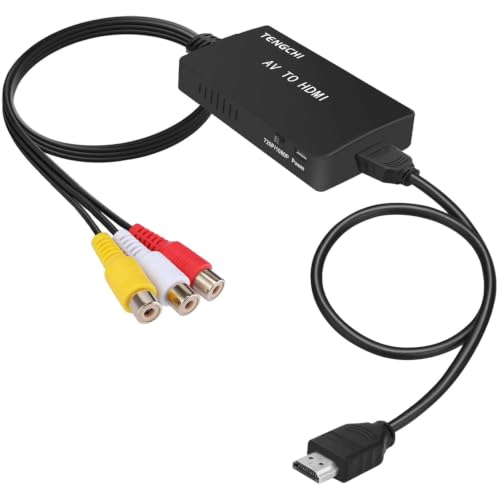 |
Tengchi RCA to HDMI Converter Viewing legacy AV on HDMI |
Check Price |
Top 5 Video Converters: Detailed Reviews
1. ClearClick Video to Digital Converter 3.0
The ClearClick Video to Digital Converter 3.0 is one of the more flexible Video Converters for digitizing VHS, VCR, DVD, camcorder, Hi8, retro gaming, and other AV or RCA sources without a computer. You connect a working source, insert a USB flash drive or microSD card up to 512GB, and record directly. Its larger 5-inch preview screen makes monitoring easier, while the built-in rechargeable battery can simplify placement. It also handles cassette tapes and vinyl records, saving audio as WAV or MP3, and includes custom auto-stop settings.
What We Like:
- Standalone operation means you do not need a computer or recording software.
- The 5-inch preview screen gives you a clearer view while recording.
- It supports both video and audio sources, including turntables and cassette players.
- Direct recording to USB or microSD keeps the workflow straightforward.
- The two-year warranty and included technical support add useful reassurance.
What Could Be Improved:
- The required USB flash drive or microSD card is not included.
- You need a working VCR or camcorder for tape conversion, so it cannot repair or read damaged equipment.
- Storage support tops out at 512GB, which may matter for large digitization projects.
Buy it if you want a self-contained way to preserve tapes, discs, records, or legacy gaming footage and value a larger preview screen. It suits users who prefer simple direct recording over computer-based capture. Skip it if you already have reliable capture software, need extensive editing tools, or lack working playback equipment.
2. Portta VD20P VHS to Digital Converter
Among Video Converters, the Portta VD20P stands out as a standalone recorder with a built-in 5-inch HD screen. Connect a VHS player, VCR, DVR, DVD player, or compatible camcorder through AV or S-Video, preview the footage, adjust brightness, contrast, and saturation, then record MP4 files in Full HD 1080p at 60fps. It supports PAL, NTSC, and SECAM formats and saves to USB flash drives, TF cards, portable hard drives, or SSDs. The screen also supports playback, so you can check recordings without connecting a computer.
What We Like:
- The 5-inch preview screen lets you monitor footage while recording.
- Brightness, contrast, and saturation controls help compensate for imperfect tapes or lighting.
- It records directly to USB drives, TF cards, portable HDDs, and SSDs.
- AV and S-Video inputs support a broad range of legacy video equipment.
- Standalone operation avoids requiring a computer for basic conversion.
What Could Be Improved:
- It accepts AV and S-Video sources, so it is not suited to converting HDMI-only devices.
- The device depends on compatible external storage for saving recordings.
- A built-in screen makes it less compact than a simple PC capture adapter.
Buy the Portta VD20P if you want a standalone way to digitize VHS, Hi8, Mini DV, DVD, or camcorder footage while previewing and adjusting the image on a larger screen. Its storage flexibility suits longer recording sessions. Skip it if your source uses HDMI or you specifically want a small, computer-based capture device.
3. Lvrzng VHS to Digital Converter
Video Converters like the Lvrzng VHS to Digital Converter are useful when you want to digitize tapes without setting up a computer. This standalone unit records analog video and audio as MP4 files at up to 1080P, while its 4-inch LCD screen and built-in speaker let you preview footage as you record. You can save files to USB or TF storage, with support for capacities up to 512GB, and connect the HDMI output to a TV or monitor. It also supports S-Video, CVBS, stereo audio, screenshots, and timed recording.
What We Like:
- No computer, software, or drivers are required, so setup is straightforward.
- The 4-inch screen lets you monitor the source and recording without using a separate display.
- USB and TF storage support gives you flexible ways to save MP4 files.
- HDMI output makes it easy to view recordings on a TV or monitor.
- The included remote, AV cable, AUX cable, power adapter, and USB-A to USB-C cable cover the basic setup.
What Could Be Improved:
- The standalone design is convenient, but it offers less editing control than a computer-based capture setup.
- You need compatible USB or TF storage to save recordings, which is not included in the listed package contents.
- The 4-inch preview screen is useful for monitoring, but it is still small for checking fine image details.
This Lvrzng converter suits you if you want a simple, computer-free way to turn VHS, camcorder, DVD, or other analog footage into MP4 files and watch previews on the unit itself. Skip it if you need advanced editing, detailed quality control, or a capture workflow built around a computer.
4. VIXLW USB Video Capture Card
The VIXLW USB Video Capture Card sends RCA or S-Video sources to a computer over USB, making it a practical choice among Video Converters for digitizing VHS, VCR, Hi8, DV tapes, camcorder footage, and DVDs. It converts analog composite input to 720p USB output and captures audio without a separate sound card. The device needs no external power and installs its driver automatically when connected. You still need acquisition software, such as OBS Studio or PotPlayer on Windows or QuickTime Player on Mac.
What We Like:
- Works with both RCA and S-Video video devices.
- Captures audio without requiring a separate sound card.
- No external power supply is needed.
- Supports Windows and Mac OS.
- Useful for saving tapes and other older footage on a computer.
What Could Be Improved:
- It requires separate acquisition software to record and manage the capture.
- The process depends on having a computer available, so it is less convenient than a standalone converter.
- Its stated output is 720p, which may not suit users seeking higher-resolution capture.
Buy this if you want to digitize legacy tapes through a Windows or Mac computer and prefer a compact USB workflow. It suits users comfortable with capture software and older RCA or S-Video equipment. Skip it if you want a standalone device, built-in recording, or a setup that works without a computer.
5. Tengchi RCA to HDMI Converter
Among Video Converters, the Tengchi RCA to HDMI Converter is designed for viewing, not creating digital files. It accepts composite RCA input from devices such as VHS players, VCRs, DVD players, game consoles, and set-top boxes, then outputs up to 1080p through HDMI 1.3. It supports PAL, NTSC, SECAM, PAL/M, and PAL/N formats, which helps with varied legacy equipment. Setup is plug and play: connect the included HDMI and USB cables, then provide USB power from a 5V 1A source. It does not support 3D, 4K, or HDMI-to-AV conversion.
What We Like:
- It lets you connect legacy RCA devices to a modern HDMI display.
- Support for several PAL, NTSC, and SECAM formats improves compatibility.
- The included HDMI cable, USB cable, and manual simplify setup.
- It works with consoles, VCRs, DVD players, and other composite-output devices.
- 1080p HDMI output can make older equipment practical on a compatible TV or monitor.
What Could Be Improved:
- It does not digitize or save VHS and other recordings, so you cannot use it as a capture device.
- You must supply a 5V 1A USB power source, which is not included.
- It supports 1080p but not 3D or 4K, limiting it for newer display setups.
Buy the Tengchi if you want to view a VHS player, retro console, DVD player, or other composite device on an HDMI TV or monitor. Skip it if your goal is to preserve tapes as MP4 files, capture gameplay on a computer, or convert HDMI sources to AV.
How to Choose Among Video Converters
Match the converter to your source
The best Video Converters choice depends on what you want to connect. VHS tapes, camcorders, and other analog sources need a device that accepts the right video and audio connections. If you want to watch an older source on a newer television rather than save a copy, an RCA-to-HDMI converter may fit better than a recording device.
Check the product’s intended role before you buy. A standalone converter handles the process without a computer, while a USB capture card sends the signal to a PC. That distinction affects where you work, which equipment you need, and how much control you have over the resulting file.
Choose standalone or PC-based recording
Standalone models suit you if you want a simpler setup and do not want to keep a computer beside the VCR or source device. Some also include a screen, which can help you monitor the conversion directly. The trade-off is that a PC-based setup may give you a more familiar file-management workflow, while a standalone device keeps the process more self-contained.
A USB capture card makes sense if your computer is already central to your media setup. You will need a compatible PC and suitable recording software, so account for those requirements before choosing this route. It offers a different workflow rather than a universally better one.
Consider recording capacity and file handling
If you plan to convert many tapes or long recordings, look for a model built around higher-capacity MP4 recording. This can reduce the need to stop and manage files as frequently. For occasional transfers, a straightforward standalone unit may be enough, especially if ease of use matters more than handling a large archive.
Think about where the finished videos will live. A computer-based capture workflow may make it easier to organize files immediately, while a standalone converter may be preferable when you want the recording process kept separate from your computer.
Separate conversion from display conversion
Not every adapter creates a digital recording. A device intended to show legacy AV equipment on an HDMI display solves a viewing problem, not an archiving problem. Choose it only if your goal is to connect older RCA equipment to a modern screen.
Before purchasing, list your source device, target device, and intended result: saved MP4 files, computer capture, or simply a picture on an HDMI television. That short checklist will narrow the options more reliably than choosing by connector count alone.
Which Video Converter Fits Your Setup?
The ClearClick Video to Digital Converter 3.0 is the best overall pick for a straightforward, standalone way to convert video and audio. Its broad purpose makes it the most balanced choice for general VHS and legacy-media transfers. Choose the Portta VD20P VHS to Digital Converter instead if a large-screen standalone setup matters more to you. For larger MP4 recording needs, the Lvrzng is the more targeted alternative.

Hi, I’m Tom Scalisi, and welcome to The Saw Blog! I started this blog to share my hands-on experience and insights about woodworking tools—especially saws and saw blades. Over the years, I’ve had the chance to work with a wide range of tools, and I’m here to help both professionals and hobbyists make informed decisions when it comes to selecting and using their equipment. Whether you’re looking for in-depth reviews, tips, or just advice on how to get the best performance out of your tools, you’ll find it here. I’m excited to be part of your woodworking journey!